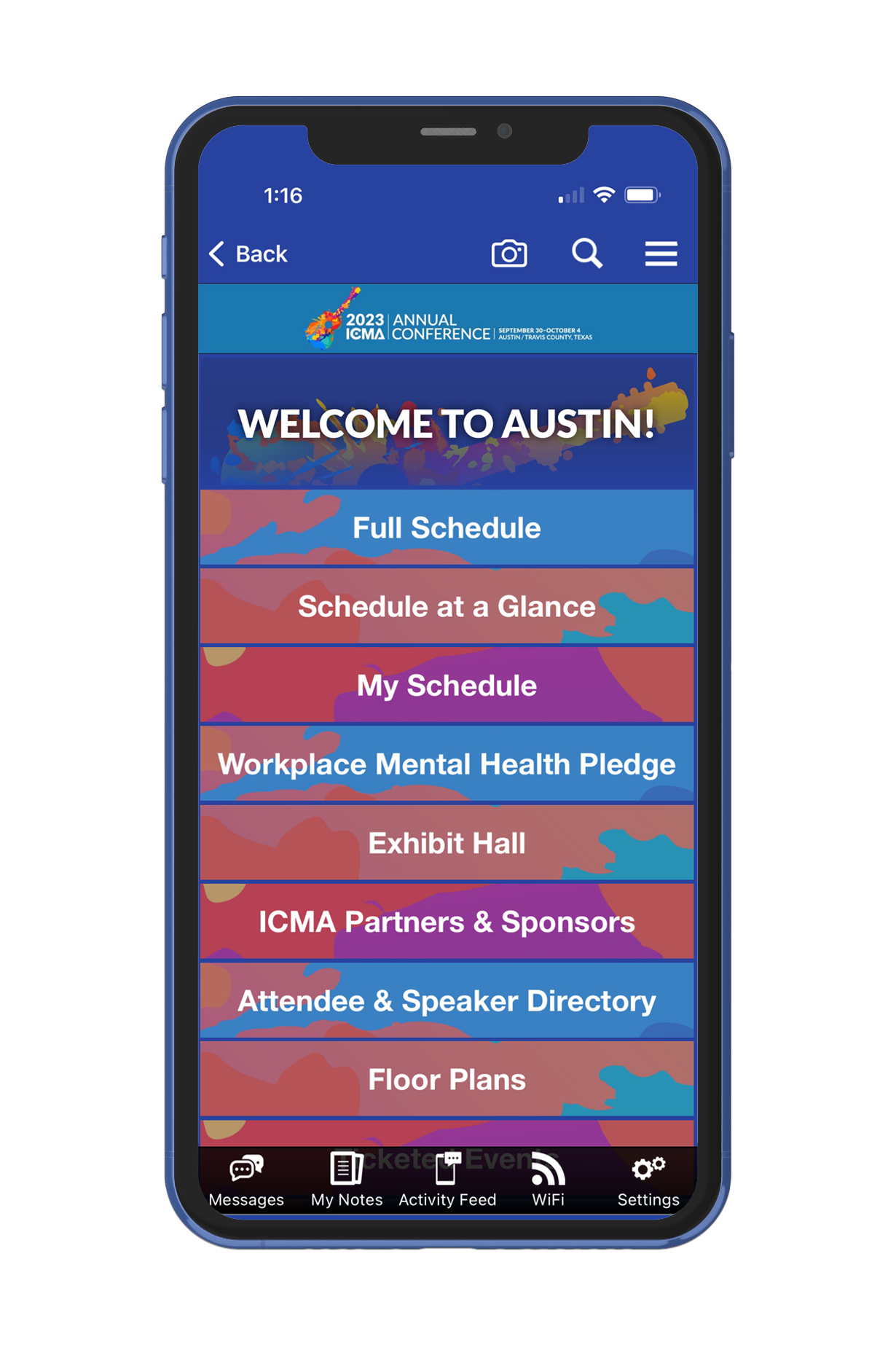
Stay connected with the 2025 ICMA Annual Conference App
The app is a must-have for the latest accurate information on session rooms and times as updates to the schedule do occur. The app is designed to work with your iPhone, iPad, and Android devices.

Unlock the full power of Conference App
Discover how easy it is to use our mobile app. Watch the ICMA Conference App Tutorial Video to learn how to use it and find all the resources you need to make your ICMA Conference experience a success.
How to Get the App

Download App
Go to the Apple App Store or Google Play Store
Search for ICMA Conference and download the app
Tap 2025 ICMA Annual Conference
Register
Enter your Email Address that you registered with and enter your Confirmation ID Number.
Need further assistance while onsite in Tampa? Please visit the Mobile App Desk located in Registration.
App Questions
The Conference app will be available in September. Here are some commonly asked questions when using the app.
Download the conference mobile app to get the latest information on the conference, network with one another, and receive important alerts during the conference. Search for ICMA Conferences in either the Play Store (Android) or the App Store (Apple) to download this year’s app. To log into the app, enter your username (the email you used to register with) and your 4-digit confirmation ID. Your confirmation ID can be found in your confirmation letter and on your badge.
Need further assistance? Please visit the Conference App desk located in the main Registration area.
If you need any assistance, please contact Conferenceteam@icma.org
An Internet or data connection is required to download the app and download documents within the app (PDF documents and presentations). Once documents have been downloaded inside the app, an internet connection is NOT required for users to view information on an ongoing basis, access materials, and take notes. However, for Android users to access documents in the “Event Info” section of the app, either an Internet or a data connection is required. To use or view websites, etc., Internet access is required.
Android Devices: Android OS 8.0 or higher.
Apple Devices (iPhone or iPad): iOS 13.0 or higher.
Navigate to the bottom-left corner of the home screen and tap ‘Refresh App’.
To take notes or draw on presentation slides, you must first download the slides. Use “Schedule” to navigate to a presentation. Select “Slides,” then “Notes.” Use the “Notes” mode to type notes adjacent to the slide. To return to the full slide view, select “Back.” Notes are automatically saved. Use the “Draw” option to draw directly on the slide using an electronic Pen, Marker, or Highlighter.
To send a message to an app user select “Connect with Attendees on the App” under the “Connect with Attendees & Speakers” tile on the app’s home screen. Next, select the name of the user to which you would like to send a message and then select the “Message” button on the navigation bar located at the bottom of the screen. Type your message and send.
Received messages can be found by selecting the “Messages” button located in the navigation bar at the bottom of the app’s main screen.
The app will remain accessible through March 1, 2026. Be sure to download any notes, handouts, or PowerPoints you want to save prior to this date.


Social Media